3 Steps to Publish Video/Article
Learn how to publish video courses and articles
Video Course Publishing Process
Upload Video to Media Library
Upload course videos to the platform media management system first
Access the Admin Panel
Access the "Admin Panel" under "Account Management"
https://app.edud.io/account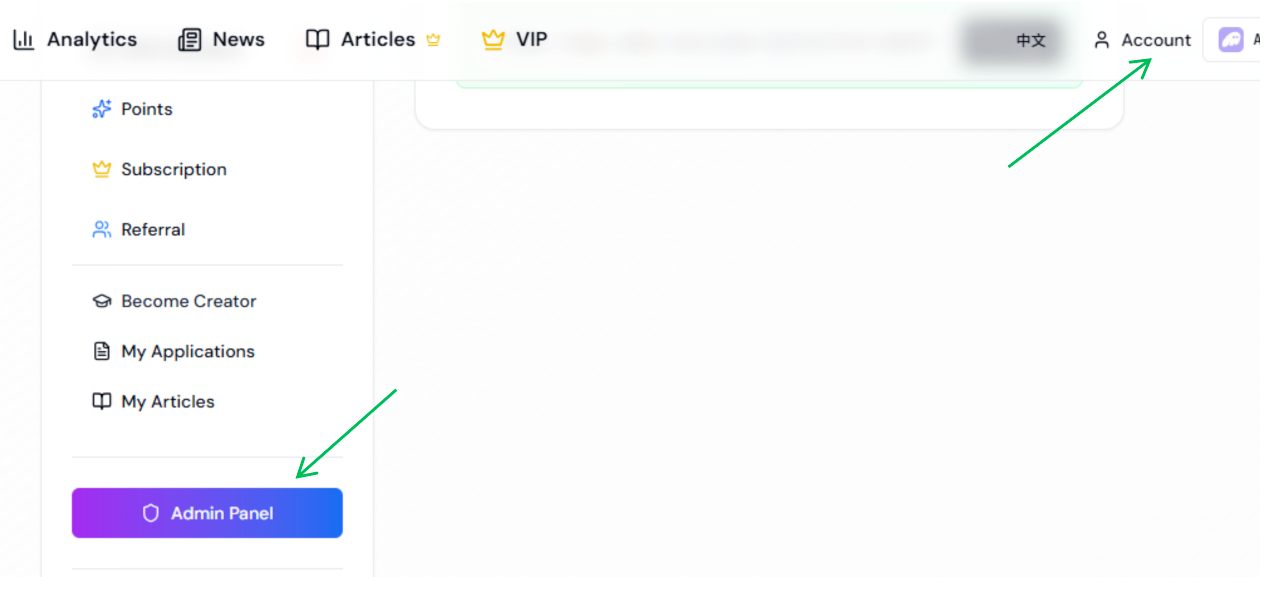
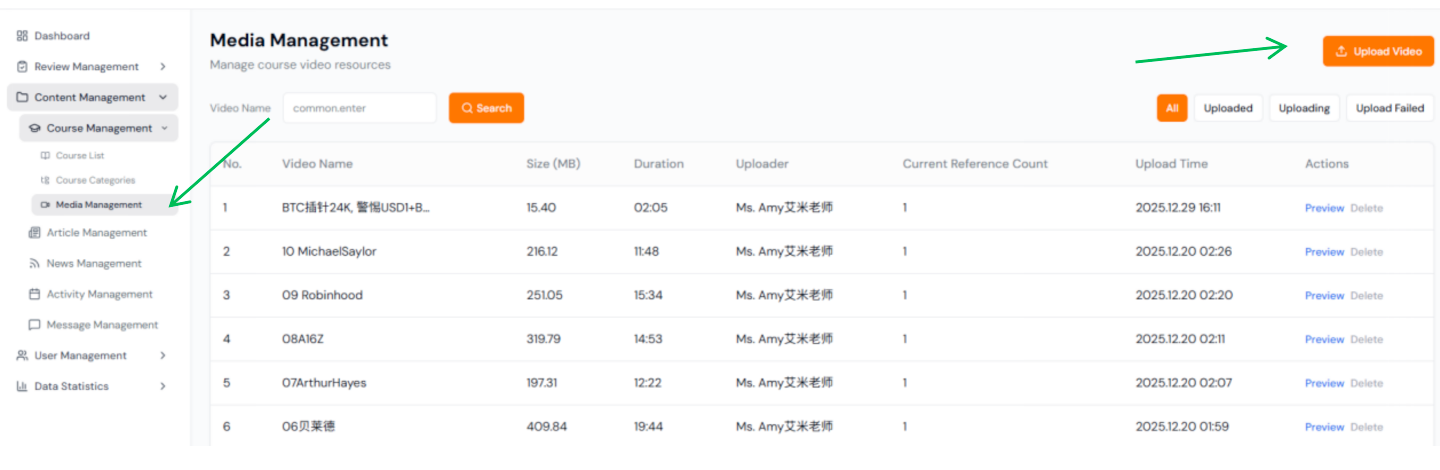
Upload Video
In "Media Management," click "Upload Video"
Create Course Basic Information
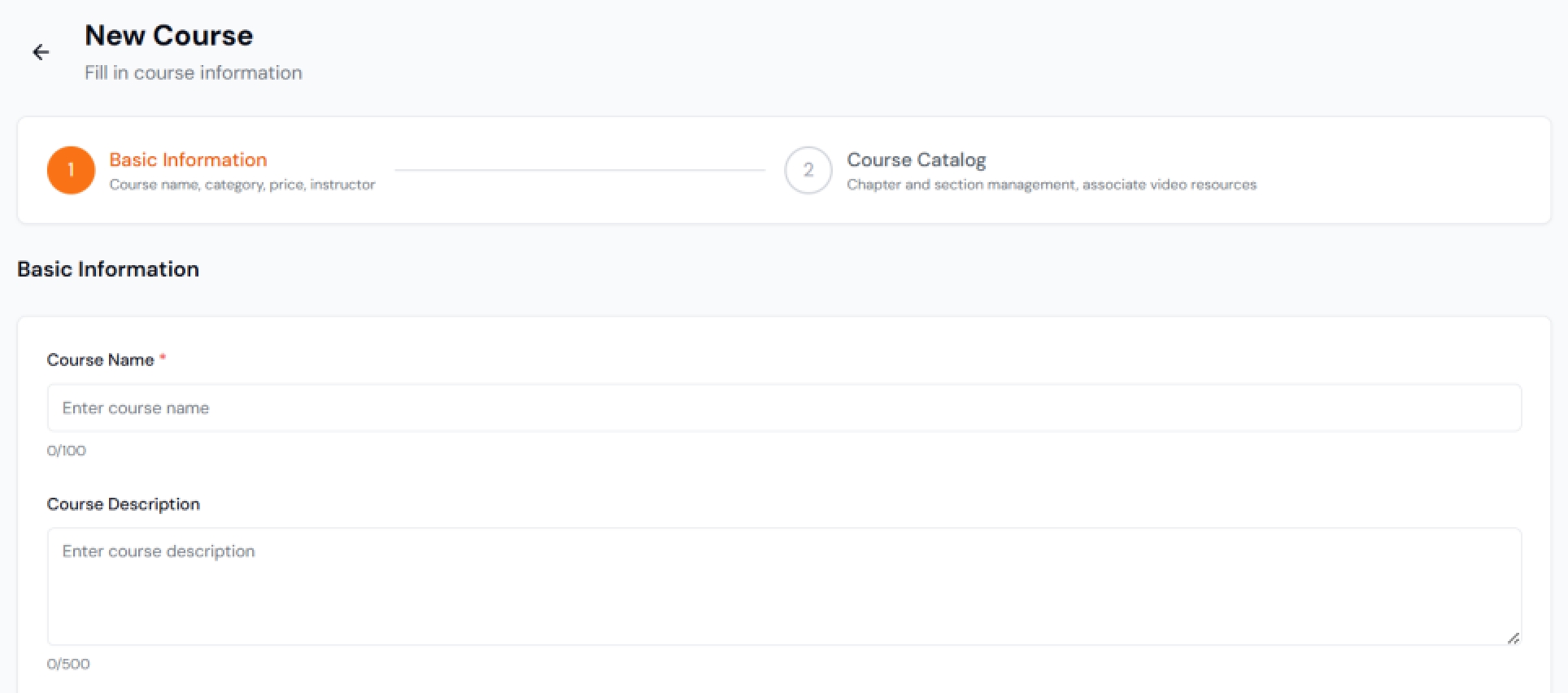
Set course name, category, price and other basic information
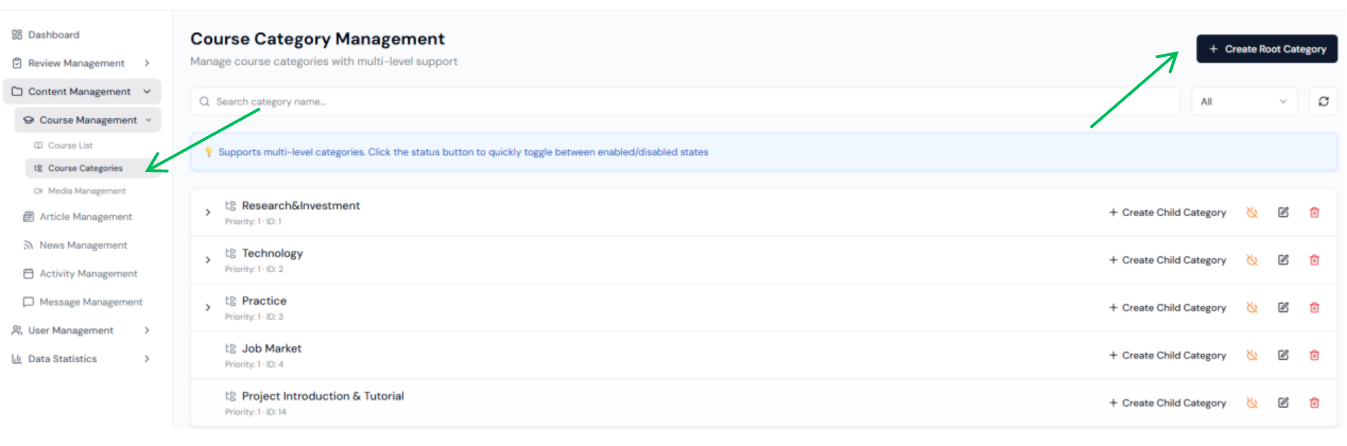
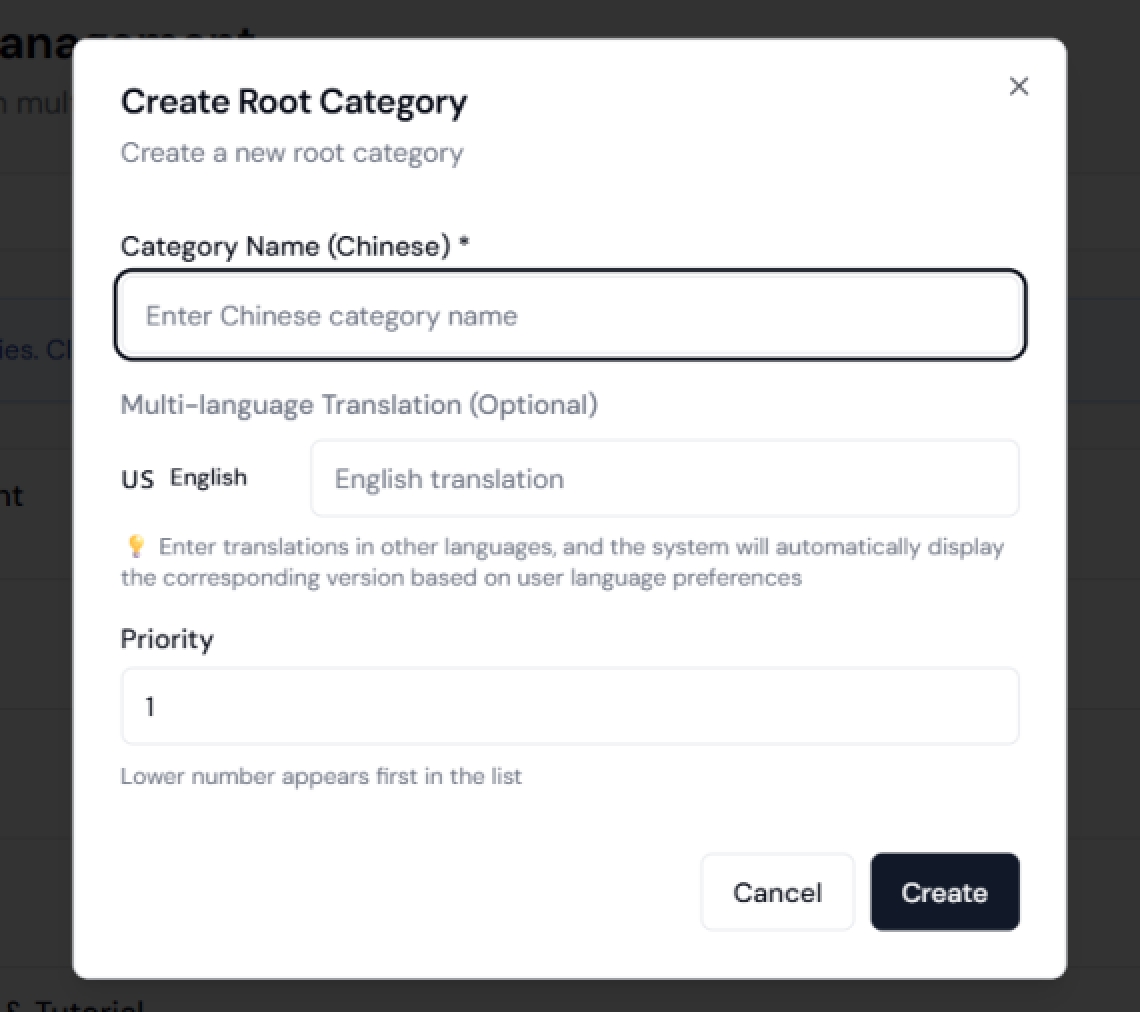
Create Course Category (if needed)
If there is no suitable course category, you can create and categorize one
Configure Course Catalog
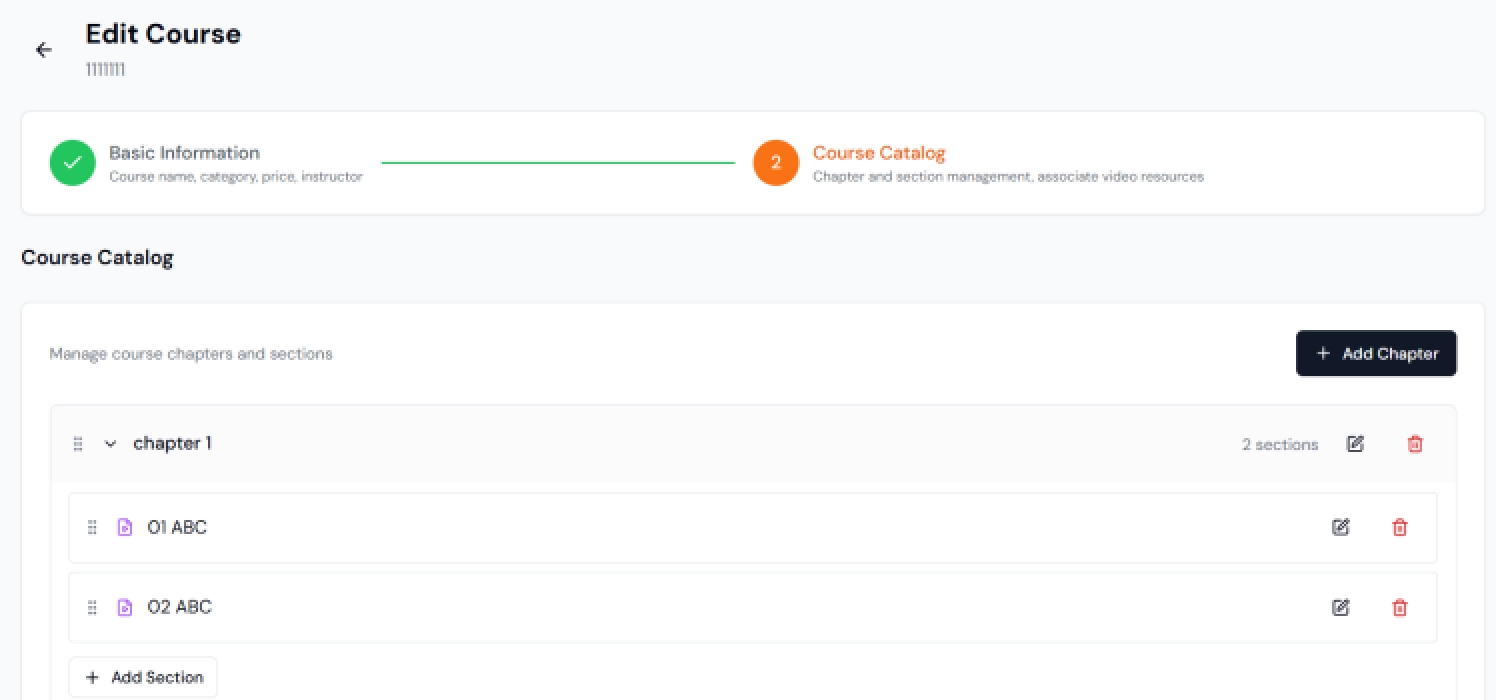
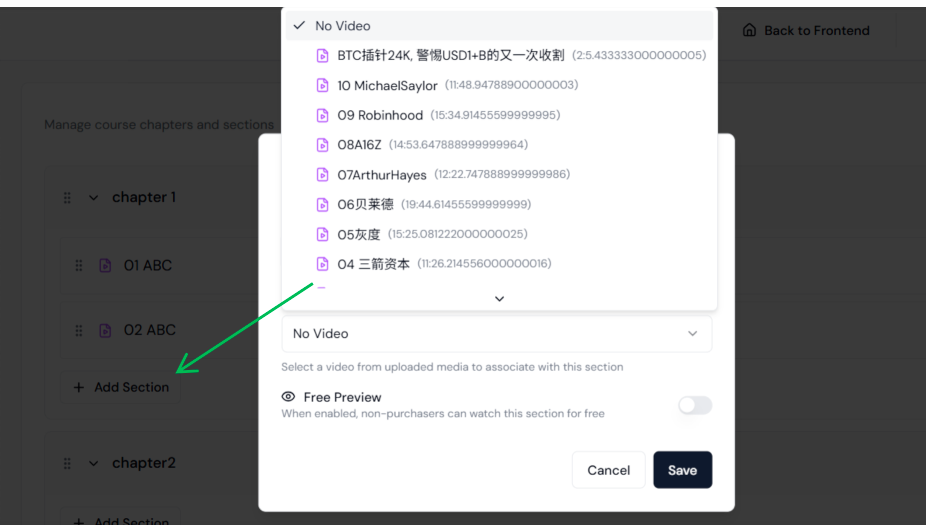
Add chapters and sections, associate uploaded videos
Create Course
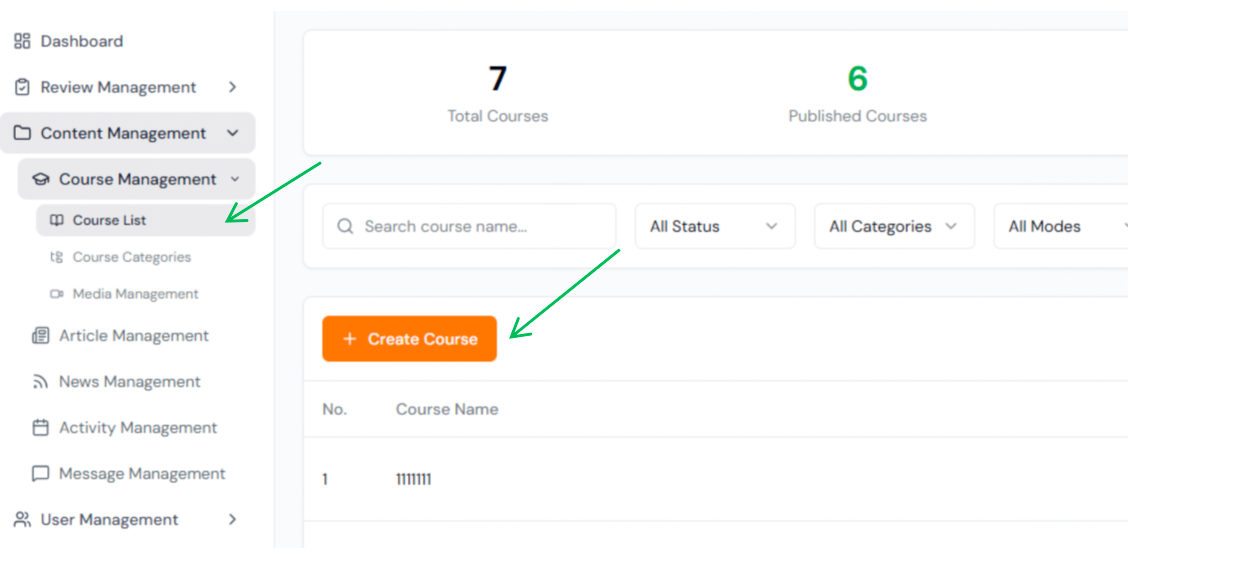
Click "Content Management" → "Course Management" → "Course List" → Create Course
Link Video Files
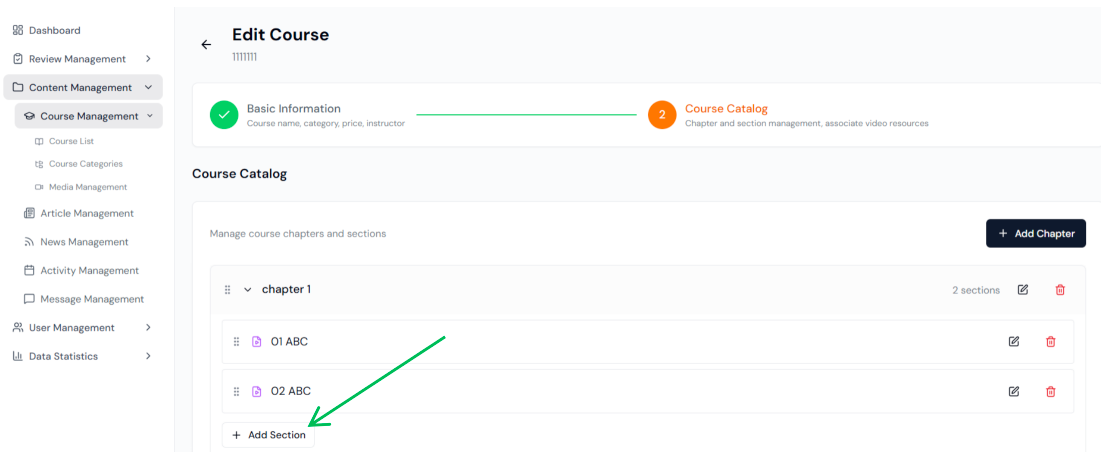
Click "Add Section" to link video files
Submit for Review
After creating a course and submitting it for review, the course will be displayed on the front end. You can subsequently add or remove courses
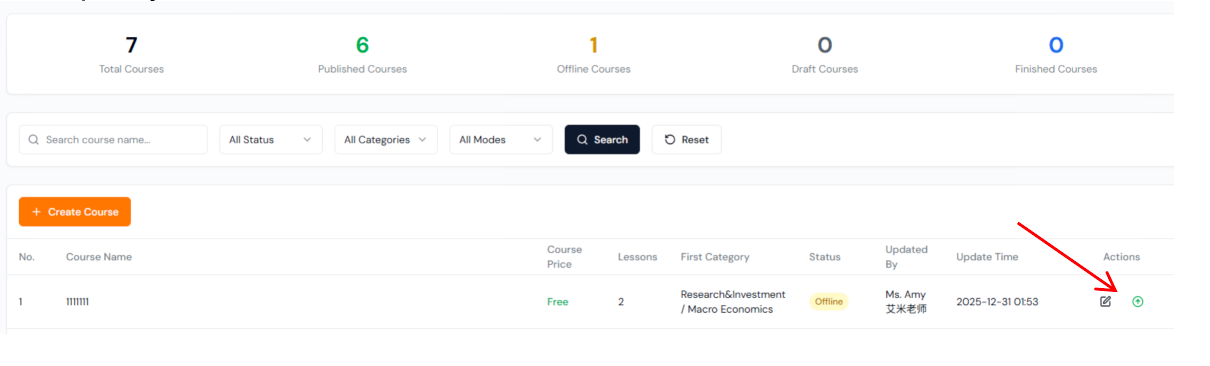
Wow! That's awesome! Congratulations, Coach—your course is live! Go get those sales! Thumbs up for you! 👍
Article Publishing Process
Create Article Content
Write articles using the editor
Access Article Column
Click "Article Column" in the navigation bar or visit the link
https://app.edud.io/articles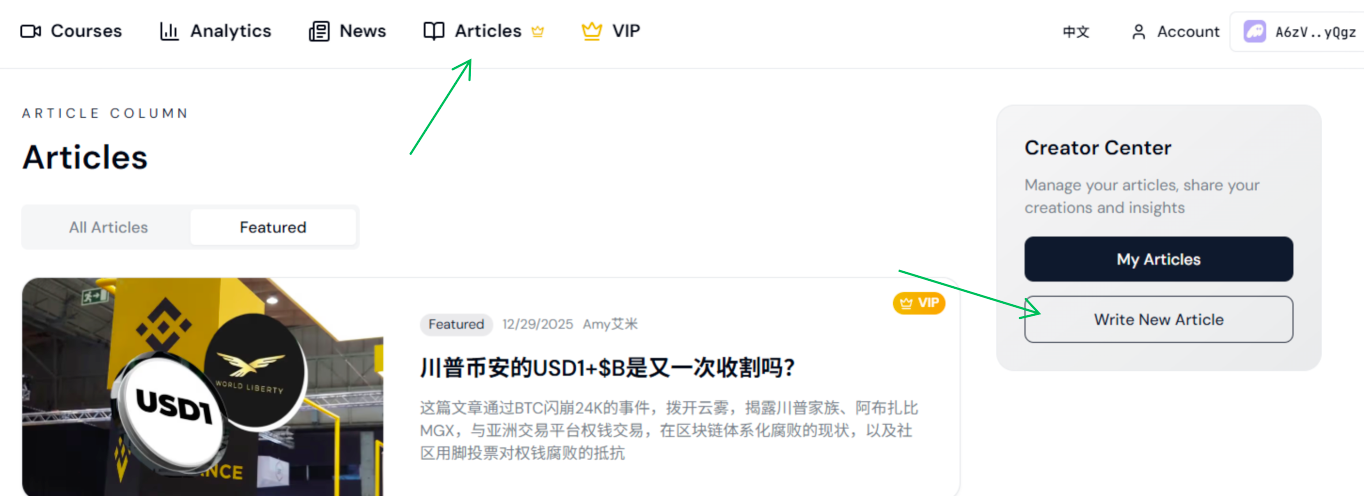
Submit for Review and Publish
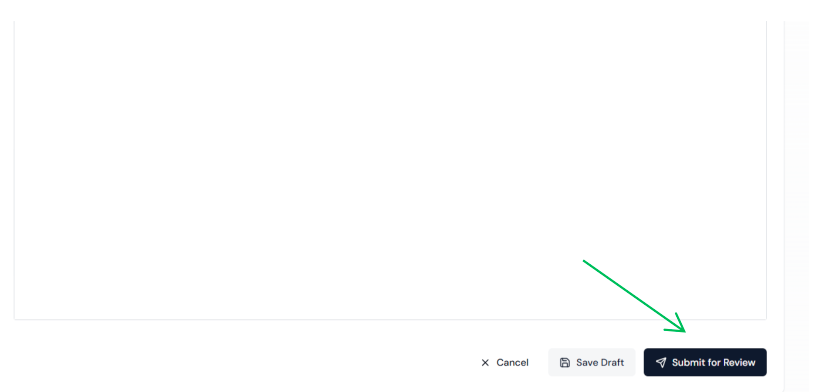
Submit for review after completing editing
Use the Markdown editor to write articles, add title, description, cover image and tags, then click "Submit for Review" after completion
Check Review Status
View article review status in account management
Check My Articles
Click "My Articles" in "Account Management" to check review status
https://app.edud.io/account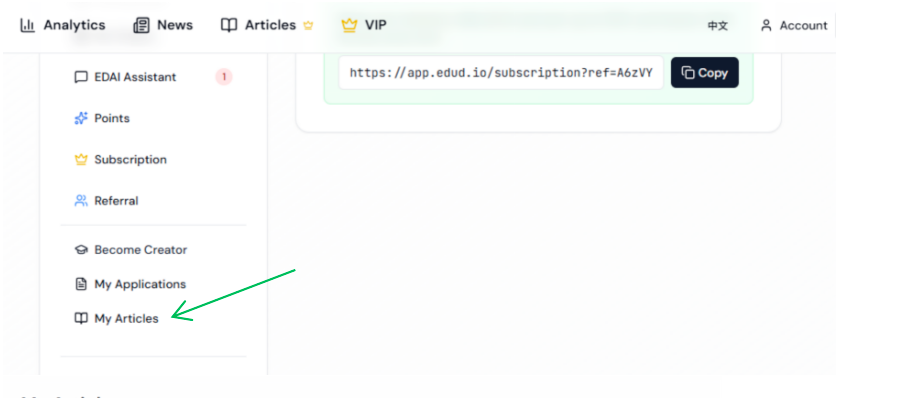
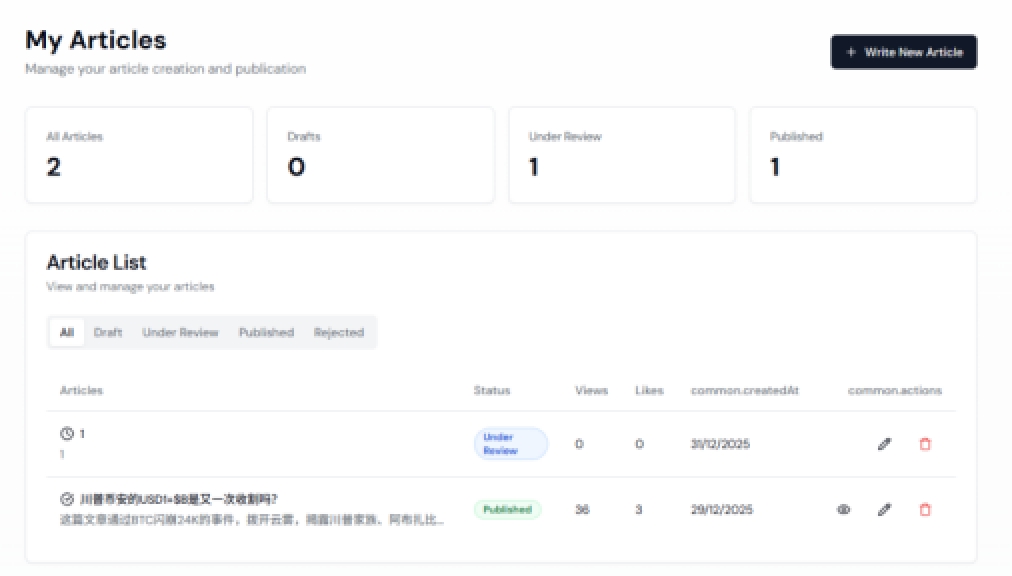
Wow! That's awesome! Congratulations, Author—your column article is featured! A viral hit has arrived! Thumbs up to you! 👍